How to build an AI video prompt from a reference video
Inspect a 35-second reference, read all five saved prompts, then follow the checks and edits for one new scene.
An AI video prompt describes the shot you want a video model to create: its subjects, action, setting and camera choices. A reference helps you make those choices concrete. For screenwriters and AI short-drama creators, the useful step is deciding what to keep and what to change—not trying to recover a hidden original prompt.
This case uses the 00:20–00:55 excerpt of Tears of Steel: a rocket launch, a conversation on a bridge and a transition to a future laboratory. Play the 35-second excerpt, inspect the five saved prompt segments, then follow the source checks and one manual adaptation below. The source is licensed under CC BY 3.0; the film credit and licence are beside the player.
The prompt text is saved VidBreak output. It has not been corrected to make the analysis look better. This is one case, not an accuracy benchmark. The adaptation and ribbon exercises are authored text, not tested generated-video results.
Reference video00:35
Tears of Steel · 35-second excerpt Displayed prompt passage: 00:04.5–00:14.5
Tears of Steel, (CC) Blender Foundation · CC BY 3.0. Source video excerpted; output excerpts selected for this page. Source · License
Read these saved analysis excerpts against the source. Replay the video to check each detail before adapting it.
Saved product output · excerpt
Subject and setting
Thom stands on the left in profile leaning against the metal railing, while Celia stands beside him on the right facing partially toward him, her mechanical right arm resting prominently along the rail.
Action · source 00:04.5–00:10
Thom leans on the railing, gesturing subtly with his hands as he turns toward Celia to plead his case, while Celia listens with growing skepticism.
Camera · first part of this beat
Hard cut to a medium two-shot at eye level, framed horizontally across the canal bridge railing with slight organic camera breathing.
Sound · first part of this beat
Clear foreground male dialogue accompanied by gentle canal water ripples and distant urban street ambience.
Times below belong to the saved analysis and start at zero in this 35-second excerpt. They are approximate analysis boundaries, not verified camera cuts. The short descriptions are editorial summaries; expand a segment to read its complete original English prompt.
Segment / source range
What the saved prompt describes
Segment 1 00:00–00:04.5
A rocket rises above an industrial city skyline.
Segment 2 00:04.5–00:14.5
Thom and Celia talk on a canal bridge; Celia raises her mechanical hand.
Segment 3 00:14.5–00:20
Their confrontation continues, with gestures and a response from Thom.
Segment 4 00:20–00:27.5
The scene shifts to a future laboratory and memory playback.
Segment 5 00:27.5–00:35
A technician works with the playback equipment.
Original English output, preserved without corrections. The checks and adaptation below are separate editorial work. Internal timestamps restart at zero within each segment.
4.5-second Cinematic live-action sci-fi establishing footage featuring realistic matte textures, atmospheric depth, and sharp architectural silhouette definition. Overcast futuristic industrial cityscape with dark steel launch gantries and residential rooftops framing a vertical rocket ascent under diffuse, cool daylight. Classic European brick gables form the lower foreground and middle ground, framing an expansive industrial launchpad where a rocket ascends centrally in the hazy distance. The sequence conveys an ominous sense of cold separation and technological scale, avoiding vibrant saturated fantasy tones, rapid camera zooms, or abrupt atmospheric shifts. Distant low-frequency industrial rumble and atmospheric wind accompany a clear, resentful female voiceover delivery.
Subject:
Rocket and Cityscape: Distant multi-stage rocket ascends vertically between dark metallic launch scaffolds set against a sprawling urban horizon of European rooftops. Propelling steadily upward with a concentrated pillar of bright white exhaust expanding into the cloudy atmosphere.
0-2 seconds:
Static establishing wide shot positioned from an elevated vantage overlooking the skyline and launch facility. The distant rocket continues its vertical climb as dense white exhaust plumes expand outward between the flanking industrial scaffolds.
Distant low industrial hum and gentle atmospheric wind ambience across the skyline. Rocket reaches the middle-upper frame with its bright exhaust column trail centered between the launch towers.
2-4.5 seconds:
Continues the static wide shot without camera movement or reframing. The rocket ascends toward the upper edge of the frame into the overcast haze while the exhaust glow illuminates the distant cityscape.
Celia (angry): "You're a jerk, Thom."
Clear foreground female voiceover delivery over the sustained low-frequency rumble of the distant rocket. Rocket enters the high clouds as the exhaust illumination fades across the distant skyline.
Camera and sound requirements: Retain only the evidenced spoken voiceover dialogue in the timeline and forbid any added dialogue or narration. Preserve the subtle low ambient electronic synth drone without introducing melodic score. Retain only the distant industrial rumble and gentle atmospheric city wind acoustics at balanced low levels. Maintain a completely locked-off, stationary wide shot without pans, tilts, shakes, or zoom movements. Maintain a continuous, uncut establishing shot lasting the full beat duration. Forbid any added subtitles, watermarks, title cards, or digital text overlays. Lock the overcast lighting, industrial scaffold geometry, city rooftop silhouettes, and exhaust plume trajectory. Avoid rapid camera moves, stylized futuristic bloom, or oversaturated fantasy color grading. Preserve the cold, solitary mood and underlying interpersonal tension rated at an intensity of 50.
Complete saved prompt 2 · 00:04.5–00:14.5
10-second Cinematic live-action footage with natural daylight rendering, realistic skin textures, and shallow depth of field along an urban canal. Amsterdam canal bridge with dark metal railings under soft overcast daylight, surrounded by green foliage, calm canal water, and historic brick buildings in the background. Thom stands on the left in profile leaning against the metal railing, while Celia stands beside him on the right facing partially toward him, her mechanical right arm resting prominently along the rail. The scene captures escalating interpersonal friction and awkward defensiveness, strictly avoiding melodramatic overacting, comical expressions, or artificial CGI lighting flares. Natural outdoor city ambience combined with conversational dialogue and distinct mechanical servo whirring from the prosthetic arm.
Person:
Thom: Standing on the left side of the bridge frame, a slim young man with dark wavy hair wearing a dark casual jacket over a patterned t-shirt and jeans. Leaning against the bridge railing with both hands, turning his upper body slightly toward Celia as he speaks. Earnest yet evasive facial expression with shifting eyes and an uneasy, conciliatory mouth.
Celia: Standing on the right side of the frame, a young woman with reddish-brown hair in a ponytail, dressed in a sporty blue and black vest and sporting a detailed metallic cybernetic right arm. Resting her mechanical hand on the railing before shifting her weight and raising the robotic hand toward Thom. Frustrated, skeptical gaze with narrowed eyes and a tight, confrontational jaw.
0-5.5 seconds:
Hard cut to a medium two-shot at eye level, framed horizontally across the canal bridge railing with slight organic camera breathing. Thom leans on the railing, gesturing subtly with his hands as he turns toward Celia to plead his case, while Celia listens with growing skepticism.
Thom (pleading): "Look, Celia, we have to follow our passions. You have your robotics, and I just want to be awesome in space."
Clear foreground male dialogue accompanied by gentle canal water ripples and distant urban street ambience. Thom finishes speaking with his hands resting on the railing as Celia begins turning directly toward him.
5.5-10 seconds:
Continues the medium two-shot with a subtle slow push-in, maintaining eye-level perspective on both characters against the foliage background. Celia turns her torso toward Thom, lifts her metallic cybernetic arm from the rail, and holds the robotic hand directly into his view while delivering her challenge.
Celia (confrontational): "Why don't you just admit that you're freaked out by my robot hand?"
Crisp female dialogue accompanied by subtle metallic servo clicks and hums as the robotic arm lifts. Celia holds her robotic hand raised toward Thom while Thom recoils slightly with an uncomfortable expression.
Camera and sound requirements: Retain only the evidenced spoken dialogue between the characters in the timeline and forbid any added dialogue or narration. Forbid any background musical score, preserving pure naturalistic dialogue and diegetic sound. Preserve natural canal water acoustics, distant city ambience, and subtle mechanical servo Foley from the robotic arm. Maintain a steady, subtle handheld-style medium two-shot with smooth, restrained reframing. Maintain a continuous, uncut two-shot take throughout the full duration of the beat. Forbid any on-screen subtitles, logos, watermarks, or artificial text overlays. Lock character wardrobe, prosthetic arm mechanical construction, bridge railing position, and diffuse daylight color temperature. Avoid exaggerated robotic transformations, fast cinematic pans, or dramatic color grading shifts. Maintain a sustained tone of interpersonal frustration and defensiveness rated at an intensity of 70.
Complete saved prompt 3 · 00:14.5–00:20
5.5-second Cinematic live-action shot maintaining crisp daylight rendering, natural urban color saturation, and realistic shallow depth of field. Outdoor Amsterdam canal bridge featuring dark wrought-iron railings under diffuse cool daylight, with lush green tree foliage and historic canal architecture softly blurred in the background. Thom stands in the left middle ground in profile facing right, while Celia stands in the right middle ground facing him with her cybernetic arm held between them. The beat delivers heightened emotional exasperation and awkward romantic confession, strictly avoiding cartoonish body language, exaggerated physical comedy, or high-tech HUD overlays. Rapid, emotionally charged spoken dialogue punctuated by mechanical prosthetic servo hums and soft city ambience.
Person:
Thom: Standing on the left, a slim young man with dark wavy hair wearing a dark casual jacket and jeans, positioned in profile facing right. Stepping back slightly from the prosthetic arm before throwing both hands into the air with exasperated gestures. Flustered and embarrassed expression with widened eyes, tense brow, and an agitated, open-mouthed confession.
Celia: Standing on the right, a young woman with reddish-brown hair in a ponytail wearing a blue and black vest with a metallic cybernetic right arm. Standing firmly upright with her robotic right hand extended steadily toward Thom throughout his confession. Stern, resolute gaze with narrowed eyes and an unyielding, vindicated facial expression.
0-2.2 seconds:
Continues medium two-shot framing at eye level, subtly reframing as Thom leans backward. Thom hesitates, stammering and glancing nervously down at Celia's outstretched cybernetic hand while trying to formulate an excuse.
Thom (hesitant): "I'm not freaked out by it's..."
Hesitant, stammering male speech over subtle background foliage rustle and distant canal ambience. Thom pauses with his head tilted back and his lips parted, poised to break into exasperation.
2.2-5.5 seconds:
Maintains eye-level medium two-shot with subtle handheld stabilization as the argument peaks. Thom throws his hands up in exasperation, waving his arms emphatically while shouting his confession, then lowers his shoulders in defeat as Celia remains motionless.
Thom (exasperated): "All right, fine! I'm freaked out. I'm having nightmares that I'm being chased by these giant robotic claws."
Loud, impassioned male vocal delivery with slight acoustic resonance in the open air, accompanied by faint rustling clothing Foley. Thom lowers his hands to his sides while Celia maintains her unwavering glare and raised mechanical hand.
Camera and sound requirements: Retain only the evidenced dialogue spoken by Thom in the timeline and forbid any added dialogue or narration. Forbid any musical score, maintaining strictly diegetic dialogue and environmental ambience. Preserve natural canal breeze, distant city traffic, and subtle mechanical servo noise from the prosthetic arm. Keep a stable medium two-shot with organic eye-level framing tracking character gestures. Maintain an uncut, continuous take throughout the argument's peak. Forbid any on-screen text, subtitles, watermarks, or graphical overlays. Lock character positions, wardrobe, prosthetic hand details, and natural daylight consistency. Avoid unnatural CGI limb effects, stylized jump cuts, or melodramatic camera zooms. Preserve peak defensiveness and raw exasperation scored at an intensity of 75.
Complete saved prompt 4 · 00:20–00:27.5
7.5-second Cinematic sci-fi interior footage with high contrast, glowing holographic vector lines, deep shadow tones, and industrial gothic architectural details. Sprawling, dimly lit ruined cathedral converted into a high-tech laboratory with heavy cables, metallic gantries, glowing orange and cyan holographic displays, and diffuse overhead spotlighting. Glowing orange and blue wireframe holographic avatars stand in the close foreground, while a massive circular mechanical core with hanging cables dominates the vast background hall. The atmosphere is somber, monumental, and tinged with technological melancholy, strictly avoiding sterile clean-room visuals, modern office computer equipment, or colorful fantasy glow effects. Resonant metallic room echoes and electronic data hums accompany a reverberant, processed audio playback of the past breakup.
Subject:
Hologram Memory Avatars: Pair of glowing orange and cyan wireframe human figures standing in the center foreground amidst dark laboratory machinery. Re-enacting the bridge confrontation through floating vector point-cloud silhouettes.
0-2.5 seconds:
Hard cut to a close-up tracking shot on the floating glowing wireframe figures amidst dark machinery. The glowing wireframe holographic models of Thom and Celia gesture dynamically in sync with the recorded memory of their past argument.
Subtle digital data glitch pulses and deep low-frequency room tone. Holographic figures continue gesturing as the camera begins pulling back smoothly into the wide lab space.
2.5-7.5 seconds:
Smooth slow crane pull-back expanding into a wide establishing shot of the massive cathedral laboratory. The camera glides backward across the cavernous dark space, revealing sprawling machinery and cables while centered title text displays prominently.
Celia (cold): "Whatever, Thom. We're done."
Echoed, processed female voice playback reverberating through the large metallic cathedral space accompanied by a rising synth pad. The camera settles on the wide cavernous laboratory view as the on-screen title text remains centered.
Camera and sound requirements: Retain only the evidenced reverberant playback dialogue in the timeline and forbid any added dialogue or narration. Preserve the slow-building, atmospheric ambient synthesizer pad score. Maintain deep cavernous room reverberation, subtle electrical hums, and holographic projection pulses. Execute a smooth, steady crane pull-back from close holographic detail to wide establishing scale. Maintain a smooth, continuous sequence shot transitioning from close holograms to the wide laboratory view. Preserve the prominent bold white capital title text '40 YEARS LATER' centered on screen. Lock the dark gothic laboratory architecture, suspended mechanical core, cable clutter, and orange-blue holographic graphics. Avoid generic clean white sci-fi aesthetics, contemporary computer monitors, or bright sunlight. Maintain a somber, monumental sense of elapsed time and melancholic nostalgia rated at an intensity of 65.
Complete saved prompt 5 · 00:27.5–00:35
7.5-second Cinematic sci-fi footage featuring floating translucent holographic user interfaces, shallow depth of field, and industrial practical console textures. Cluttered futuristic laboratory workstation filled with analog dials, patch cables, and glowing green and magenta holographic UI panels under moody directional overhead lighting. The technician sits centered behind an industrial control console in the middle ground, framed by translucent floating graphic interfaces in the foreground and blurred lab machinery in the background. The scene conveys calm technical precision and focused anticipation, strictly avoiding erratic handheld camera shaking, cartoonish interface animations, or modern consumer electronics. Crisp tactile switch Foley, digital interface audio confirmation tones, and clear spoken technical status dialogue.
Person:
Technician: Seated in the center of the control desk, a young technician with curly brown hair, round metal-framed glasses, and a dark hooded casual jacket. Hands actively manipulating physical dials and tactile toggle switches on the cluttered control console while gazing at the floating holographic readouts. Concentrated, professional facial expression with focused eyes behind glasses and a slight nod of confirmation.
0-2.5 seconds:
Cut to a tight close-up on the control console surface and technician's hands adjusting dials beneath floating holographic graphics. The technician's fingers turn analog knobs and flip metallic switches as green and magenta interface elements update in response.
Crisp tactile switch clicks, mechanical dial rotations, and subtle digital interface chirps. Console switches settle into locked positions as holographic indicators flash confirmation.
2.5-7.5 seconds:
Smooth cut to a medium shot through translucent floating HUD graphics, framing the seated technician looking upward. The technician completes the console calibration, looks up toward the main holographic readout, and clearly announces the status confirmation.
Technician (focused): "Robots' memories synced... and locked."
Clear spoken dialogue from the technician supported by a sustained low electronic synth drone and positive interface tone. The technician remains seated looking at the console as floating green text 'SIMULATION READY' illuminates the frame.
Camera and sound requirements: Retain only the evidenced spoken line from the technician in the timeline and forbid any added dialogue or narration. Preserve the subtle, low electronic pulse building quiet tension without intrusive melodic themes. Preserve tactile console Foley, switch clicks, and electronic interface audio cues at clear spatial levels. Maintain stable, controlled framing with smooth transitions between close console details and medium subject coverage. Execute a clean two-shot progression from close hardware manipulation to medium character status delivery. Preserve floating holographic HUD interface text including 'SIMULATION READY' and system telemetry readouts. Lock the technician's wardrobe, glasses, console dial arrangements, and green-magenta holographic overlay styles. Avoid exaggerated cartoonish computer graphics, high-energy action camera moves, or flat brightly lit laboratory environments. Maintain a calm, focused technical atmosphere rated at an emotional intensity of 60.
For this walkthrough, we checked sampled source frames across the excerpt, including 4.7, 7, 10, 12 and 14 seconds. This visual check does not verify every frame or the audio. Keep the original prompt above intact and put corrections in your working draft.
Element
Saved analysis / source check
Correction or decision
Segment boundary
Segment 2 starts at 4.5 seconds in the saved analysis, but the frame at 4.7 seconds still shows the rocket. By 7 seconds, the bridge is visible.
Do not treat 4.5 seconds as a verified cut. Use the bridge passage around 7–14 seconds for this exercise; verify exact cuts if editing.
People and action
Frames at 7–14 seconds show two people at a railing, turning toward each other; Celia lifts her mechanical hand.
Keep the two-person interaction. New characters, hand gestures and the workshop below are deliberate authored changes.
Camera
The saved text combines camera breathing, a slow push-in and an uncut two-shot instruction. Sampled stills cannot verify that full movement.
For the new scene, choose one eye-level two-shot with a fixed camera. This is an editorial simplification, not a correction claimed from the stills.
Speech and sound
The saved prompt includes quoted dialogue, water, street ambience and servo sounds. These were not independently checked in this visual review.
Remove the source dialogue and sound list from the adaptation. Re-listen before reusing audio details.
Interpretation
The prompt assigns an emotional intensity of 70. This is generated interpretation, not a measured property of the footage.
Replace the number with a visible action and restrained expression.
The useful result is a draft you can inspect and revise. If an observation cannot be confirmed, mark it as uncertain or leave it out; do not turn it into a precise-sounding production instruction.
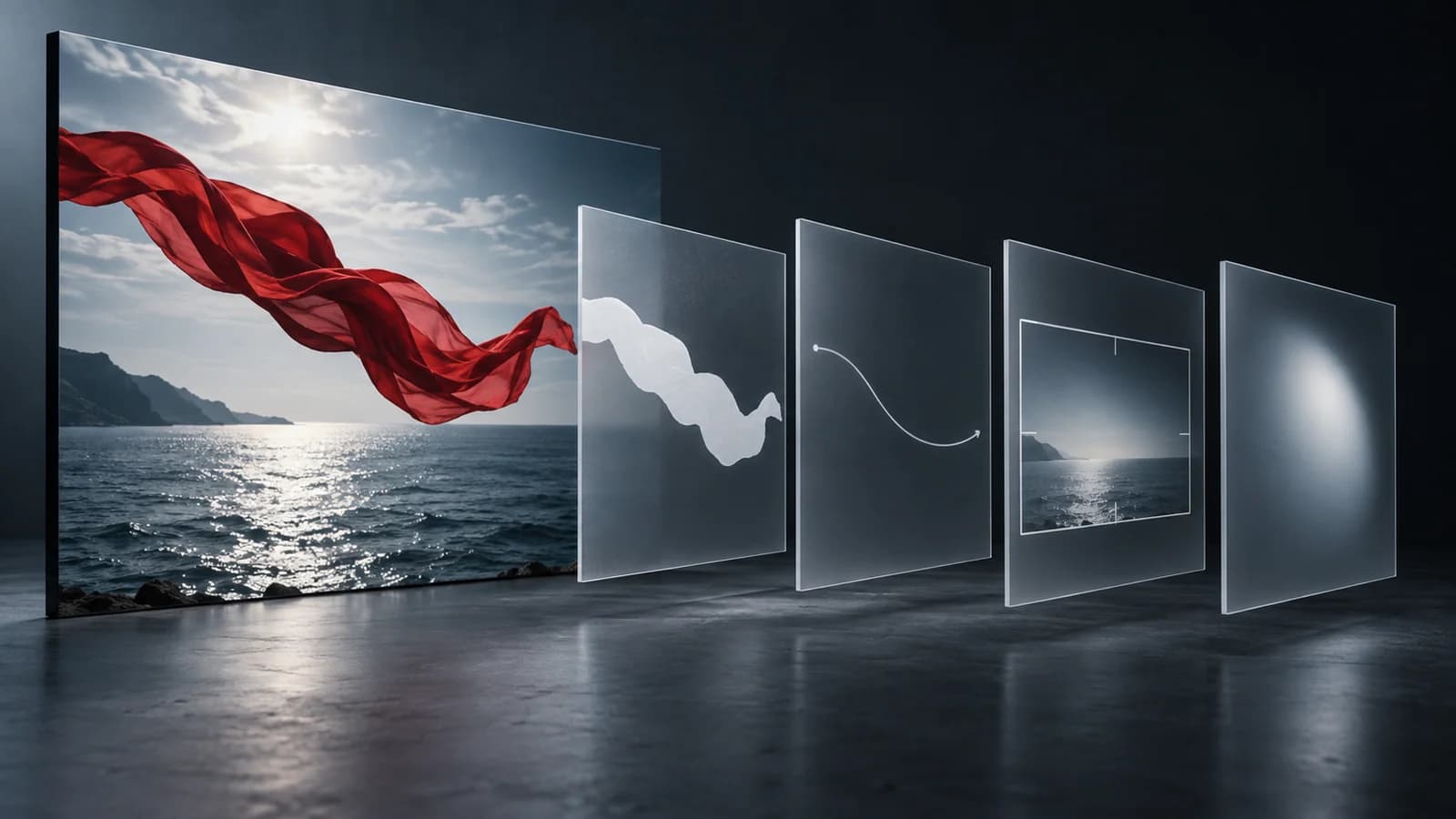
This separate exercise uses a red ribbon tied to a pier rail. It is not a scene from Tears of Steel. The illustration is conceptual; these text drafts have not been tested as model outputs.
Close view of a red ribbon tied around a weathered wooden pier rail. The loose end lifts in the sea breeze, twists once, and settles against the wood. The knot stays attached. Soft overcast morning light, sea in the background, fixed camera.
This draft names the subject, action and framing. It does not ask for an establishing shot, a close-up, a storm and a sunset in one clip.
The ribbon’s loose end lifts in a gentle breeze, twists once, and settles against the rail. The knot stays attached. The camera remains fixed.
Use this shorter draft when the starting image already establishes the subject, light and composition. Check your chosen model's documentation: duration, image references and aspect ratio may be separate controls, and not every model supports sound.
Start from segment 2's two-person exchange. The table below records the actual editorial decisions, so you can see how the new prompt differs from the raw output.
Raw prompt element
Choice for the new scene
Why
Thom, Celia, a canal bridge and a mechanical arm
Two colleagues beside a workshop bench
Supply original characters and a different setting.
Ten seconds, dialogue and multiple movements
A five-second exchange with one turn and one response
Keep a smaller action to revise and test. Five seconds is an authored target, not a measured source duration.
Camera breathing and a slow push-in
Fixed, eye-level two-shot
Use one clear camera instruction.
Quoted dialogue and detailed source sounds
No dialogue or sound requirements in this draft
Avoid carrying unchecked source audio into the new scene.
Precise emotion score and many exclusions
Restrained expressions; both people stay in frame
Describe observable behavior and a small number of constraints.
Authored adaptation · not a tested generated result
Five-second scene. Fixed, eye-level medium two-shot of two colleagues beside a quiet workshop bench in soft daylight. The colleague on the left turns toward the other and lifts one hand; the colleague on the right meets their gaze and pauses. Keep both people in frame, with restrained expressions and one continuous setting.
The new characters, workshop, duration and action choices are editorial additions. This draft has not been run in a video generator. Select an actual model's supported duration and input settings, then test and record the result; the text alone does not establish compatibility or exact recreation.
A reference may cut from a wide shot to a close-up and then a reaction. Keep that as a shot plan. Create or film each shot within your chosen tool's limits, then edit them together. A detailed ten-minute reconstruction is a planning document, not a promise that a generator will follow every timestamp in one request.
Use VidBreak to prepare the written draft, then check it against your source. A supported public link gives a view-only preview of the first 15 seconds. Sign in for uploads or full tasks with a selected AI-prompt range of up to 10 minutes; review the credit estimate before starting.
Need help with importing a reference, choosing its range or checking the extracted result? Follow the step-by-step guide to extracting a prompt from video, then return here to refine the prompt's structure and wording.
Only if the destination model supports the sound you need. Otherwise keep it as an editing note or produce it separately.
Is a longer prompt always better?
No. Add details that remove an ambiguity. Conflicting motion and several scene changes can make one intended shot less clear.
Can I paste a whole reconstruction into a generator?
Treat it as a planning document. Split it into supported shots or clips and adapt each prompt to your model's limits.
Have these examples been tested in an AI video generator?
This page includes saved VidBreak analysis of Tears of Steel and separately authored prompt exercises. The saved analysis demonstrates VidBreak’s text output; the authored exercises are not generated-video tests. The current page does not establish how those drafts perform in a particular generator or guarantee exact recreation. Adapt them to your model and test your own result.